Gmail Domain Configuration Guide
1. Register Account
Simply log in with your Google account to access:
2. Add Sending Domain
- Click the red + button in the bottom right corner and fill out the form
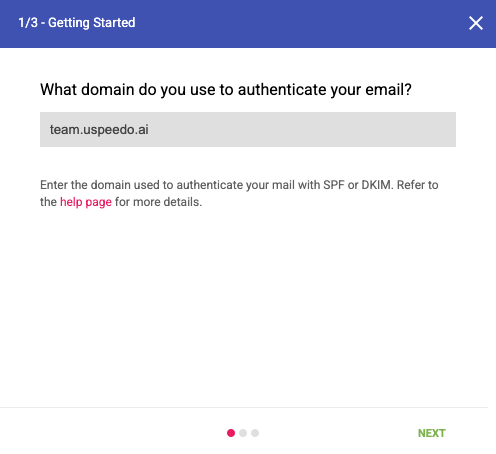
💡 Note: Enter the sending domain here, not the sender address. For example:
- Sender address:
support@mail.uspeedo.ai- Sending domain:
mail.uspeedo.ai
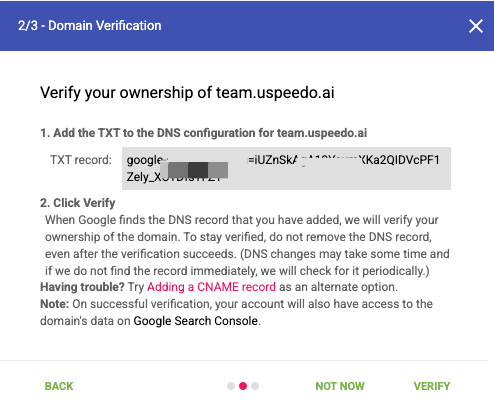
In the second step, you will see the TXT record, or you can click the red text "Adding a CNAME record" to get the CNAME record. Choose either one.
3. Configure Domain DNS
Once you have the TXT record or CNAME record, you can configure DNS. TXT records can be added multiple times.
Steps:
- Log in to the platform where you purchased your sending domain, find the domain resolution or DNS resolution page, and add the resolution record

Host Configuration:
- If the sending domain is:
team.uspeedo.ai, the Host should be:team - 【Not recommended】If the sending domain is:
uspeedo.ai, the Host should be:@
- If the sending domain is:
After successful resolution, refresh the page after 3-5 minutes to see the status change to: Verified

4. View Domain/IP Reputation
Viewing reputation requires some time to accumulate (at least 7 days). If you haven't sent any emails, there will be basically no data, and it will default to a new domain that needs warm-up.

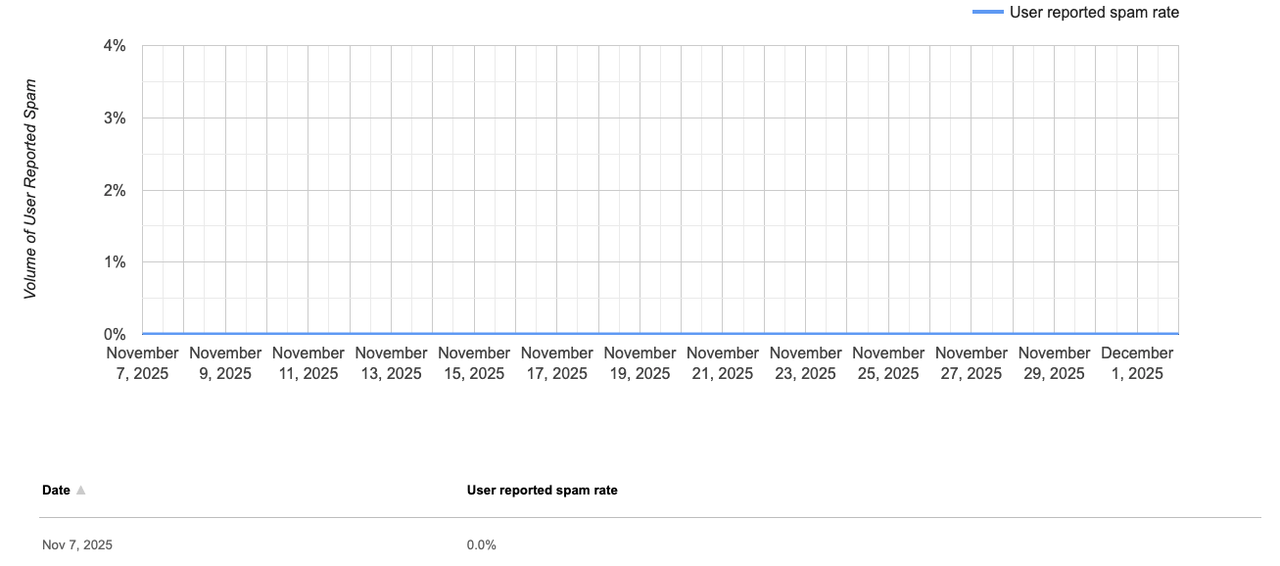
Spam Rate
- Definition: The proportion of emails marked as spam by users
- Gmail is particularly sensitive: > 0.1% starts to pose a risk
- 0.3% will significantly affect inbox delivery rate
- What to monitor:
- Spam Complaint Rate
- Spam rate in Gmail Postmaster Tools
IP Reputation
- Definition: The overall credibility of the sending IP on the email service provider (ISP) side
- Mainly reflects: Short-term sending behavior quality
- New IPs or unwarmed IPs have higher risks
- Sudden increases in sending volume will quickly lower reputation
- What to monitor:
- IP Reputation level (High / Medium / Low / Bad)
- Whether it's on a blacklist (RBL)
- Sending volume changes per unit time (whether there's a Burst)
Domain Reputation
- Definition: The long-term reputation performance of the sending domain on the ISP side
- Gmail prefers: Using the domain as the core judgment object
- When domain reputation is poor, changing IPs has limited effect
- What to monitor:
- Domain Reputation level (High / Medium / Low / Bad)
- Overall delivery performance of all emails under the same domain
- Domain reputation in Gmail Postmaster Tools
Feedback Loop (FBL)
- Definition: ISPs provide feedback to senders about users' spam complaint behavior
- Used to identify: Recipients who clearly dislike the emails
- Gmail does not provide traditional FBL
- Yahoo / Outlook support it
- What to monitor:
- Email addresses of complaining users
- ISP source of complaints
- Time when complaints occurred
- Best practices:
- Immediately add users who complain to the unsubscribe or blacklist
Authentication
- Definition: Verifies whether emails come from legitimate and trusted senders
- Gmail's basic delivery threshold:
- Authentication failures are very likely to end up in spam or be rejected
- What to monitor:
- SPF: Whether it passes (Pass / Fail)
- DKIM: Whether it passes (Pass / Fail)
- DMARC: Whether it passes and whether it's aligned (Alignment)
Encryption
- Definition: Whether emails use encrypted channels during transmission
- A reputation bonus rather than a deciding factor:
- Long-term TLS maintenance is beneficial for overall reputation
- What to monitor:
- TLS encryption usage rate
- Whether there are cases of encryption failure falling back to plaintext
Delivery Errors
- Definition: Cases where emails fail or are delayed during delivery
- Directly reflects: Recipient data quality and sending behavior
- High error rates will affect reputation assessment
- What to monitor:
- Hard Bounce (Permanent failure, such as non-existent email addresses)
- Soft Bounce (Temporary failure, such as rate limiting, server busy)
- Distribution of 4xx / 5xx error codes
5. [Optional] Add US Access Permission
You can view this directly on the US platform later to optimize email delivery effectiveness.
Steps:
After successful resolution, hover over the corresponding domain, click the action on the right, and select Manage Users
Click + in the bottom right corner, and add the email:
uspeedocom@gmail.com
