How to Add a Primary Domain or Subdomain in Namecheap?
Overview
This guide demonstrates how to add a root domain or subdomain in Namecheap and configure the DNS records required by uSpeedo.
Prerequisite: You already have a Namecheap account.
Although this guide is as detailed as possible, you may still encounter issues when configuring DNS records. If problems arise, we recommend contacting Namecheap official support directly—they can identify and resolve issues faster (or provide guidance on next steps).
Choose Root Domain or Subdomain
Before you start, you need to decide whether to use:
- Primary Domain
- or Subdomain
Concept Explanation
- Root Domain Examples:
- uspeedo.com
- google.com
- Subdomain Examples:
- mail.uspeedo.com
- mail.google.com
👉 Rule: A subdomain adds a prefix (one or more) to the root domain.
📌 Recommendation: Use a subdomain first.
After Making Your Selection
- Add the domain/subdomain in the uSpeedo Console
- The system will automatically generate the corresponding DNS records
Add a Domain
Three methods are supported:
Method 1: Register a New Domain
Purchase a new domain directly in Namecheap.
Steps:
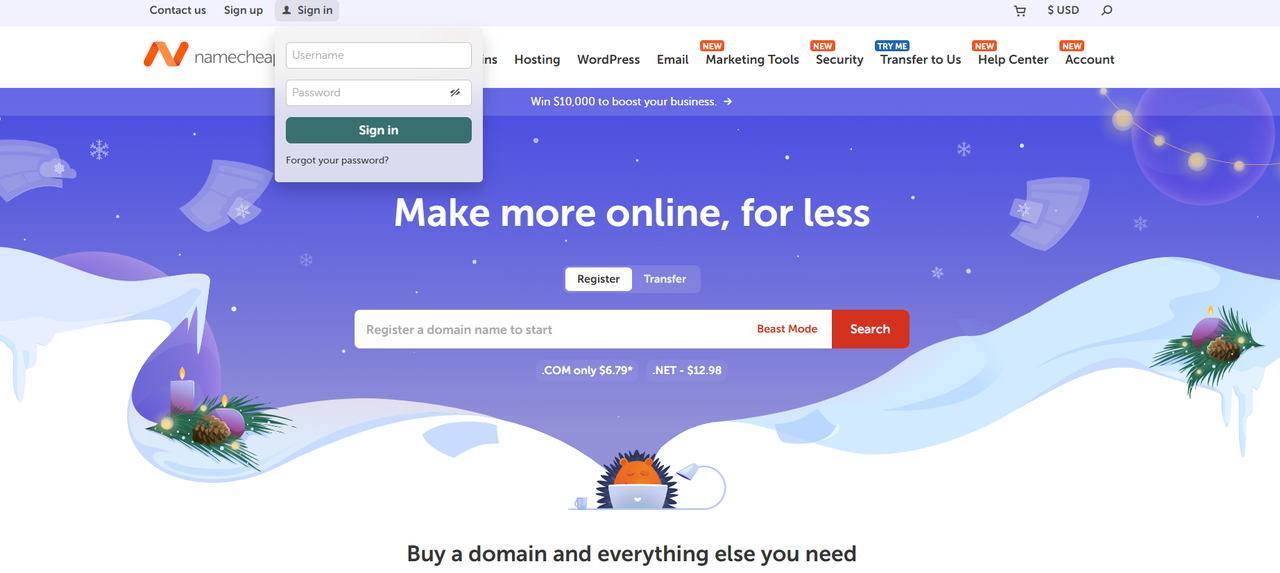
Log in to Namecheap
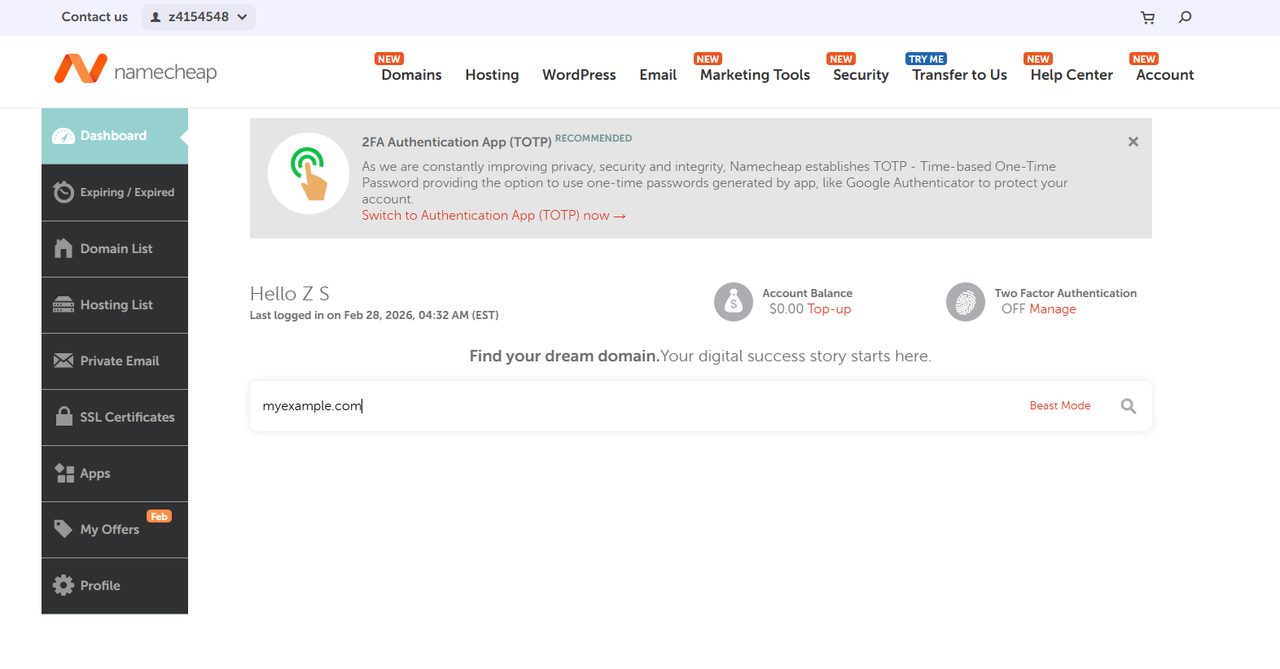
Enter the domain you want to purchase
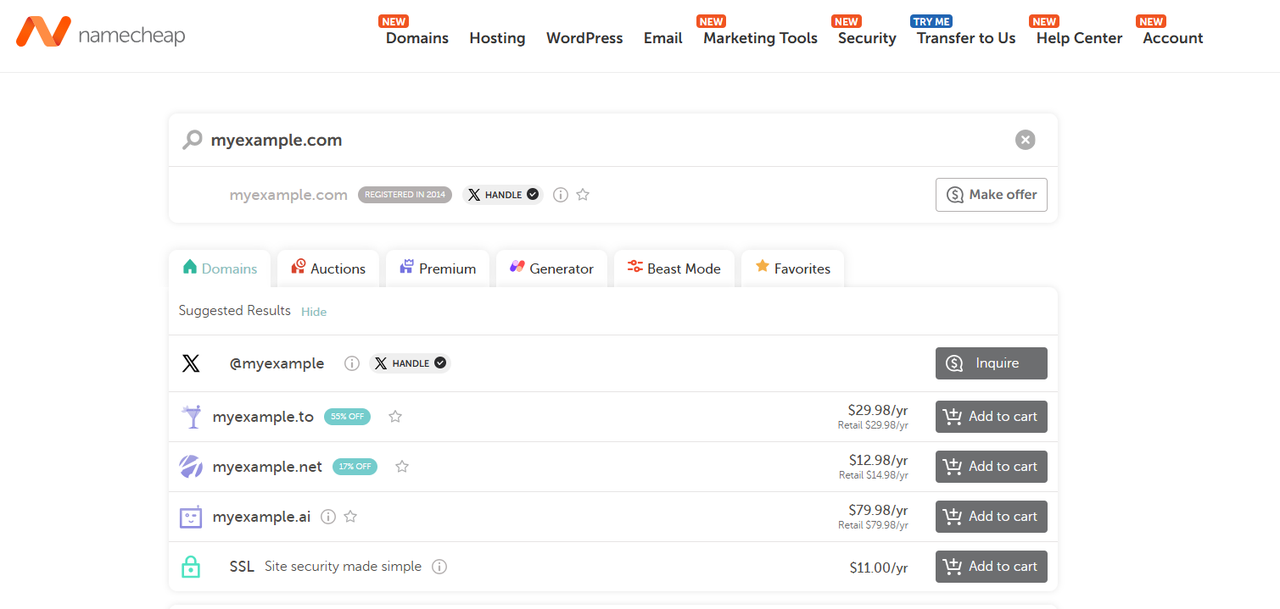
Complete payment and registration
Method 2: Transfer a Domain
Transfer a domain from another registrar to Namecheap.
Method 3: Use an Existing Domain (Recommended)
Keep your current registrar, but switch DNS hosting to Namecheap.
If your domain is registered on another platform:
Log in to Namecheap
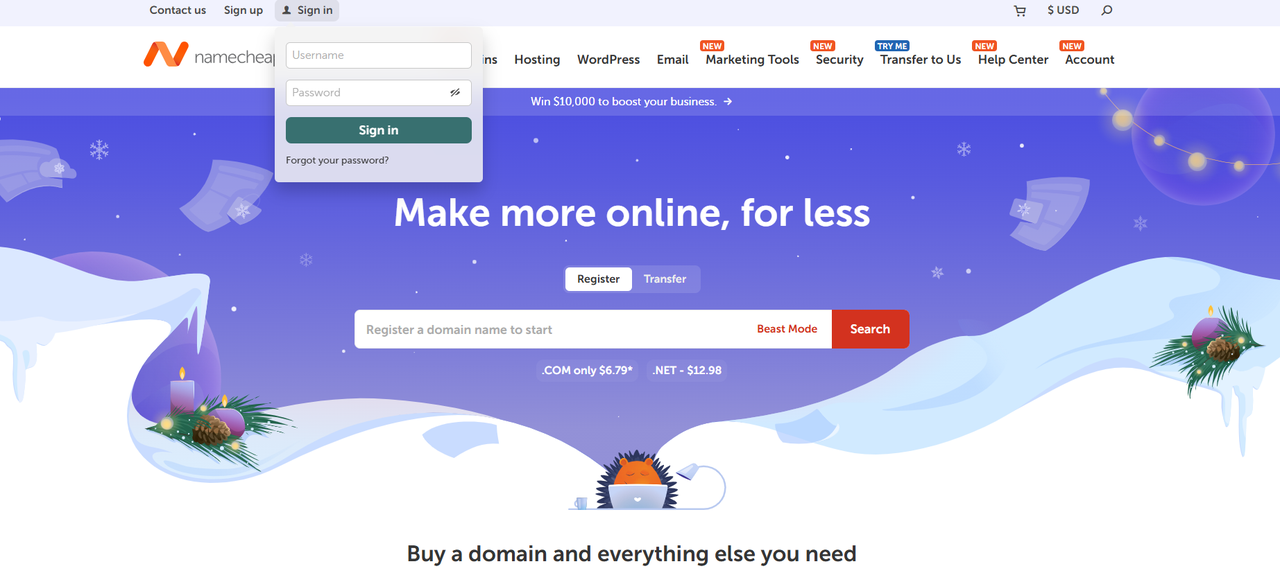
Go to Domains → FreeDNS
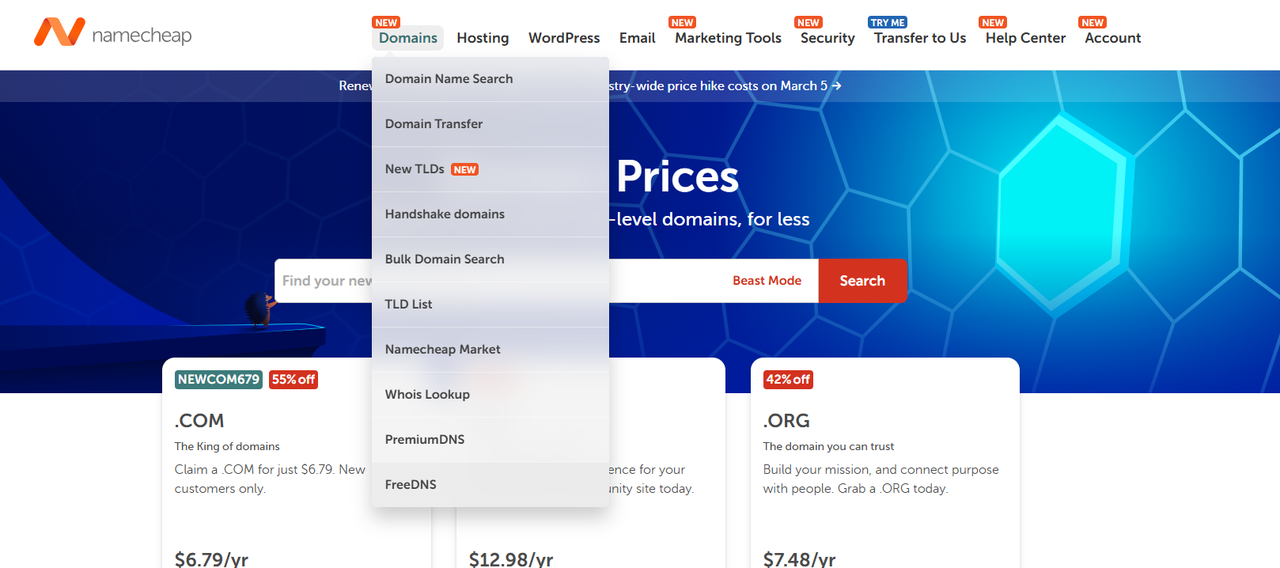
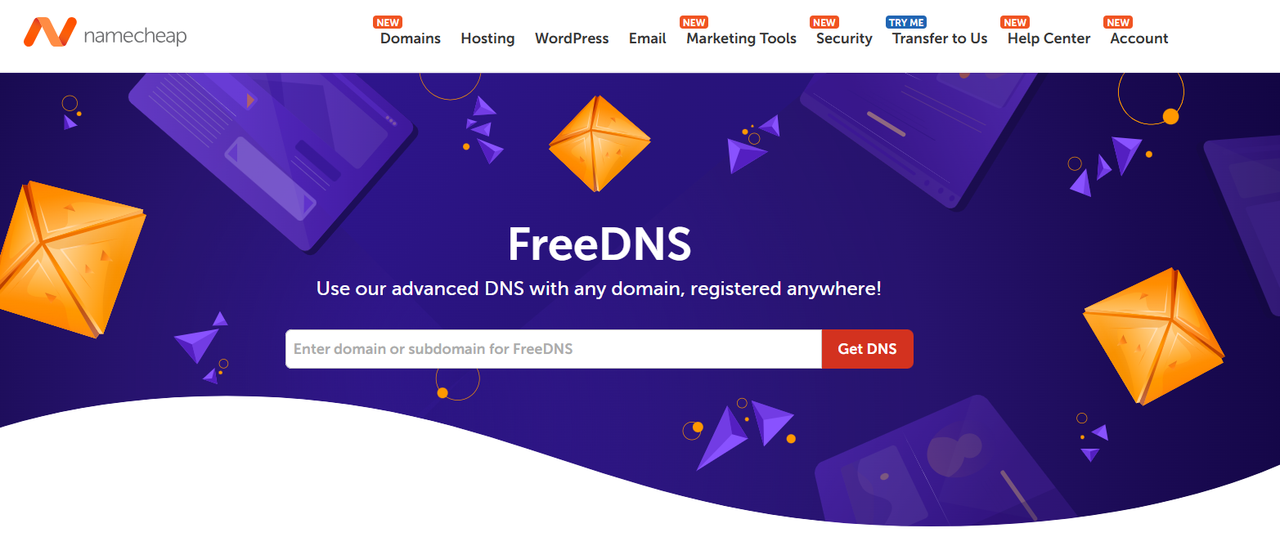
Enter your domain and click Get DNS
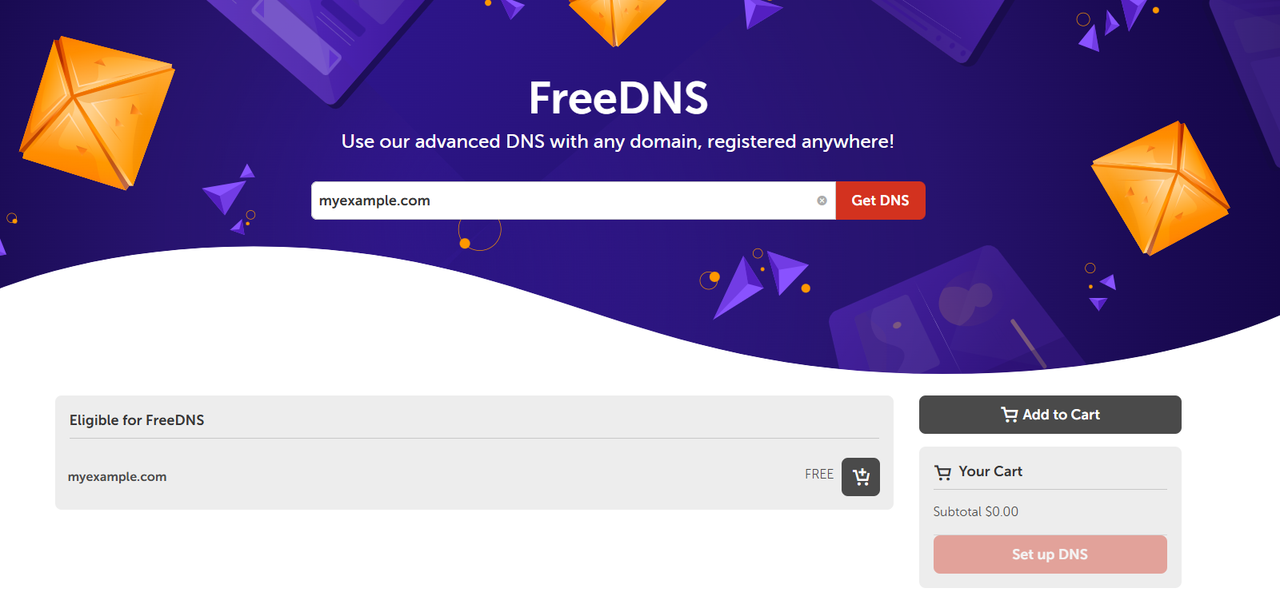
Add to cart and click Set up DNS
Obtain the NS records provided by Namecheap
Update the NS records at your original registrar to the values provided by Namecheap
👉 This article focuses on Method 1 and Method 3.
Configure the Domain
Path:
Log in to Namecheap
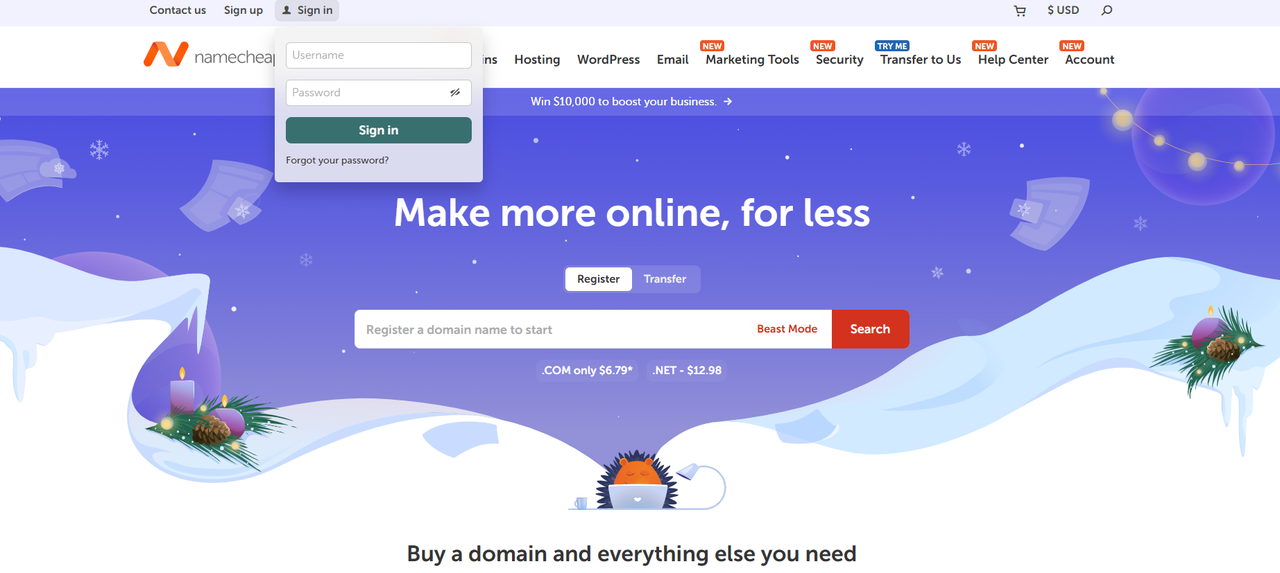
Go to Domain Management
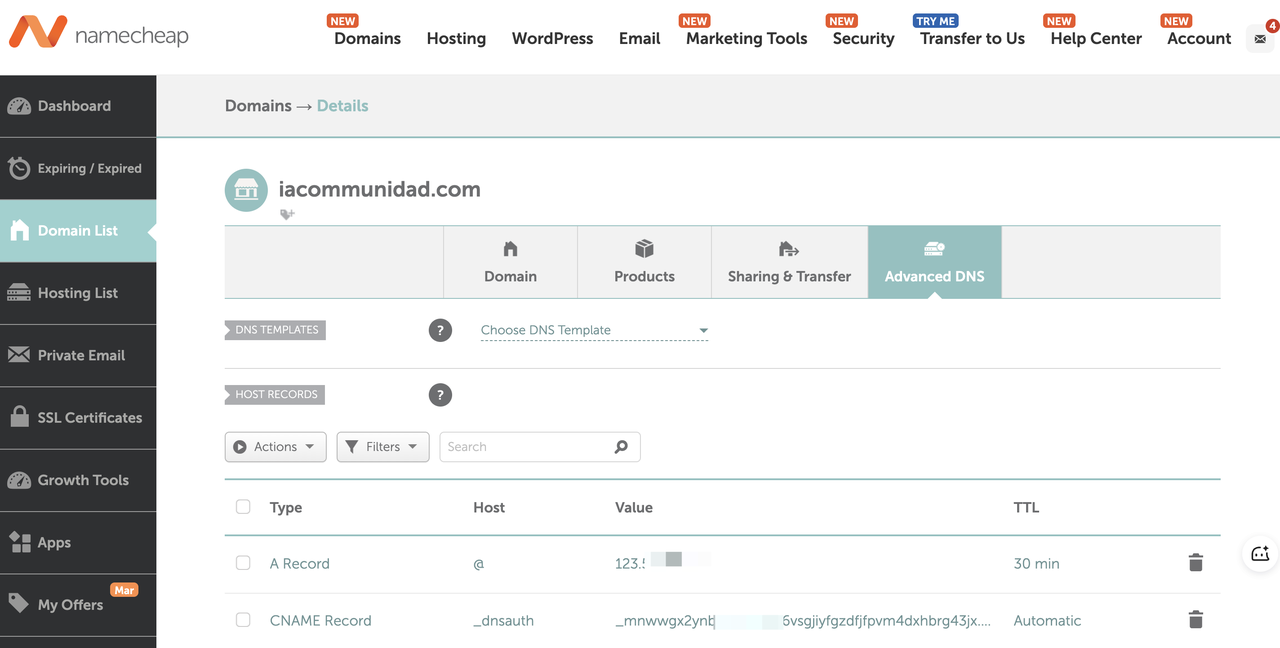
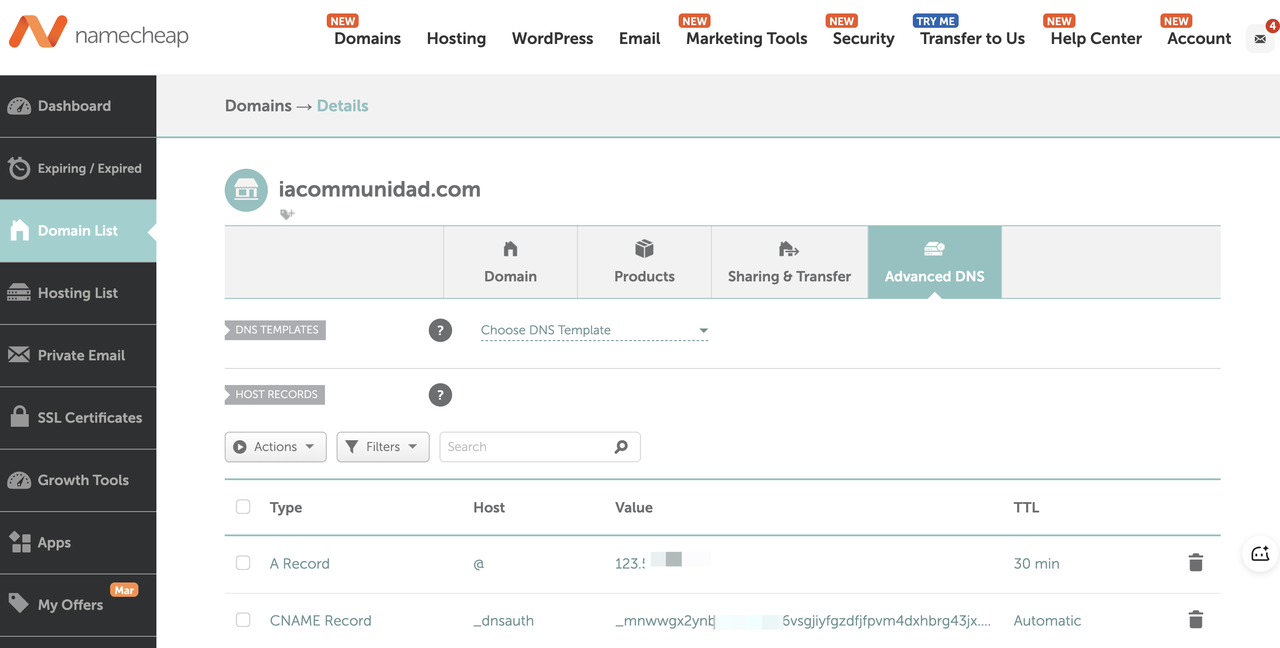
Find your domain and click Manage
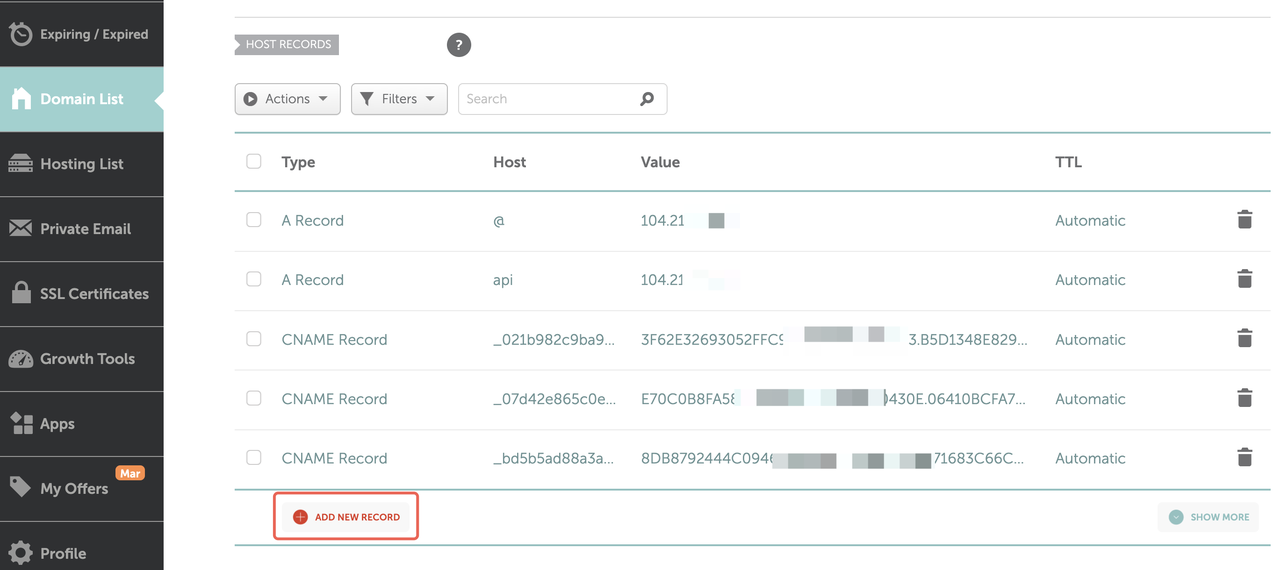
Click Add Record to add DNS records
SPF Configuration
Purpose: Prevent email spoofing and reduce the chance of being marked as spam.
Root Domain SPF
| Field | Value |
|---|---|
| Type | TXT |
| Host | @ |
| Value | v=spf1 include:sendcloud.org ~all |
| TTL | 600 |
📌 Note:
If an SPF record already exists:
👉 Insert the following between v=spf1 and ~all:
include:sendcloud.org
Subdomain SPF
| Field | Value |
|---|---|
| Type | TXT |
| Host | Subdomain prefix (e.g., sc) |
| Value | v=spf1 include:sendcloud.org ~all |
| TTL | 600 |
DKIM Configuration
Purpose: Verify email origin and prevent spoofing.
Root Domain DKIM
| Field | Value |
|---|---|
| Type | TXT |
| Host | sendcloud._domainkey |
| Value | k=rsa; p=public key (provided in console) |
| TTL | 600 |
📌 Note: The Host may be:
- default._domainkey
- sc._domainkey 👉 Use the value from the uSpeedo Console.
Subdomain DKIM
| Field | Value |
|---|---|
| Type | TXT |
| Host | sendcloud._domainkey.sc |
| Value | k=rsa; p=public key |
| TTL | 600 |
MX Configuration
Purpose: Designate the mail servers responsible for receiving emails.
Root Domain MX
| Field | Value |
|---|---|
| Type | MX |
| Host | @ |
| Value | mx.sendcloud.org |
| Priority | 10 |
| TTL | 600 |
📌 Note: ❗ Do not configure MX records from multiple email providers at the same time, as this will cause unstable delivery.
Subdomain MX
| Field | Value |
|---|---|
| Type | MX |
| Host | Subdomain prefix |
| Value | mx.sendcloud.org |
| Priority | 10 |
| TTL | 600 |
DMARC Configuration
Purpose: Email authentication policy + reporting mechanism.
Root Domain DMARC
| Field | Value |
|---|---|
| Type | TXT |
| Host | _dmarc |
| Value | v=DMARC1; p=none; rua=mailto:dmarc-reports@yourdomain.com; ruf=mailto:dmarc-forensics@yourdomain.com; fo=1 |
| TTL | 600 |
Parameter Explanation
v=DMARC1: Protocol versionp=none: Monitor modep=quarantine: Send to spam/junk folderp=reject: Reject directlyrua: Aggregate report addressruf: Forensic report addressfo=1: Failure reporting
Subdomain DMARC
| Field | Value |
|---|---|
| Type | TXT |
| Host | _dmarc.sc |
| Value | v=DMARC1; p=none; rua=mailto:dmarc-reports@yourdomain.com |
| TTL | 600 |
Update NS Records (Critical)
If you are migrating from another DNS service: 👉 You must update the NS (Name Server) records.
Otherwise: ❌ uSpeedo will be unable to verify the DNS configuration.