Preview & Send Test Emails
Overview
Creating a great email is only half the battle—the other half is making sure it displays correctly and reaches the inbox. The Preview and Send Test Email features in uSpeedo allow you to visualize your design across different screen sizes and verify your sending setup, saving you from accidental typos or broken layouts.
How It Works
🖥️ Previewing Your Email
You can check how your email looks on both desktop and mobile devices at multiple stages of your workflow:
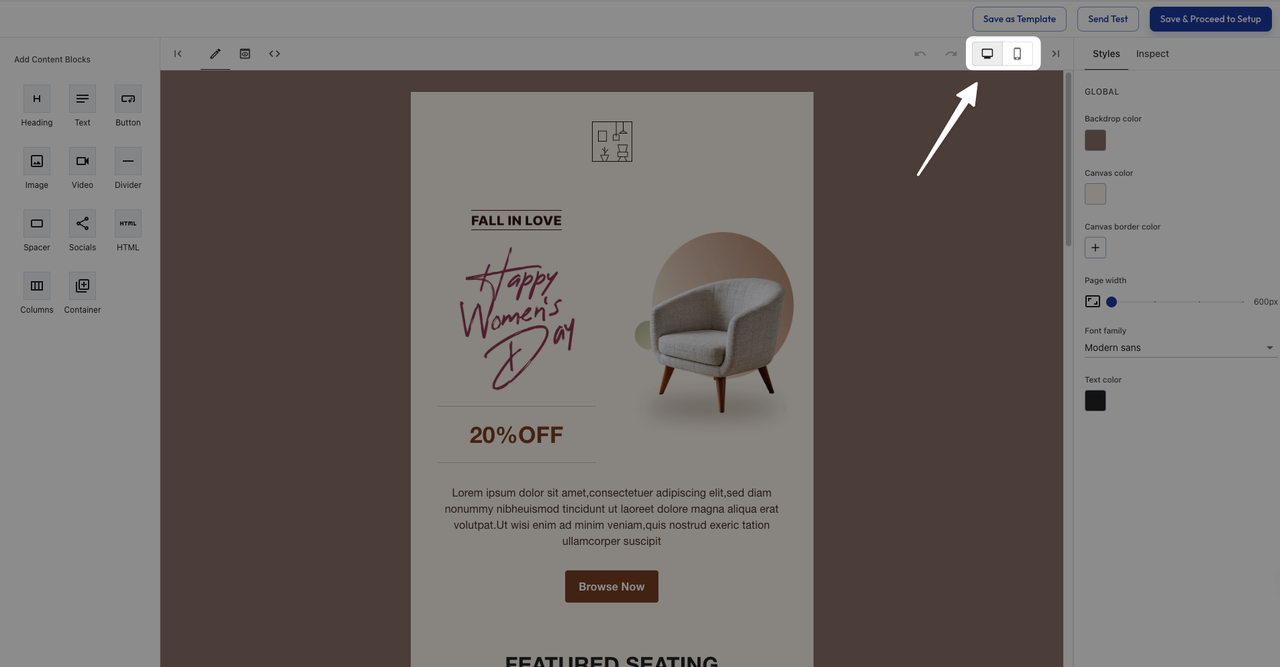
- Inside the Drag-and-Drop / HTML Editor
- In the top-right corner of the editor, you will find toggles to switch between Desktop(default) and Mobile views.
- As you edit, the preview updates in real time, so you can immediately see how your email will appear
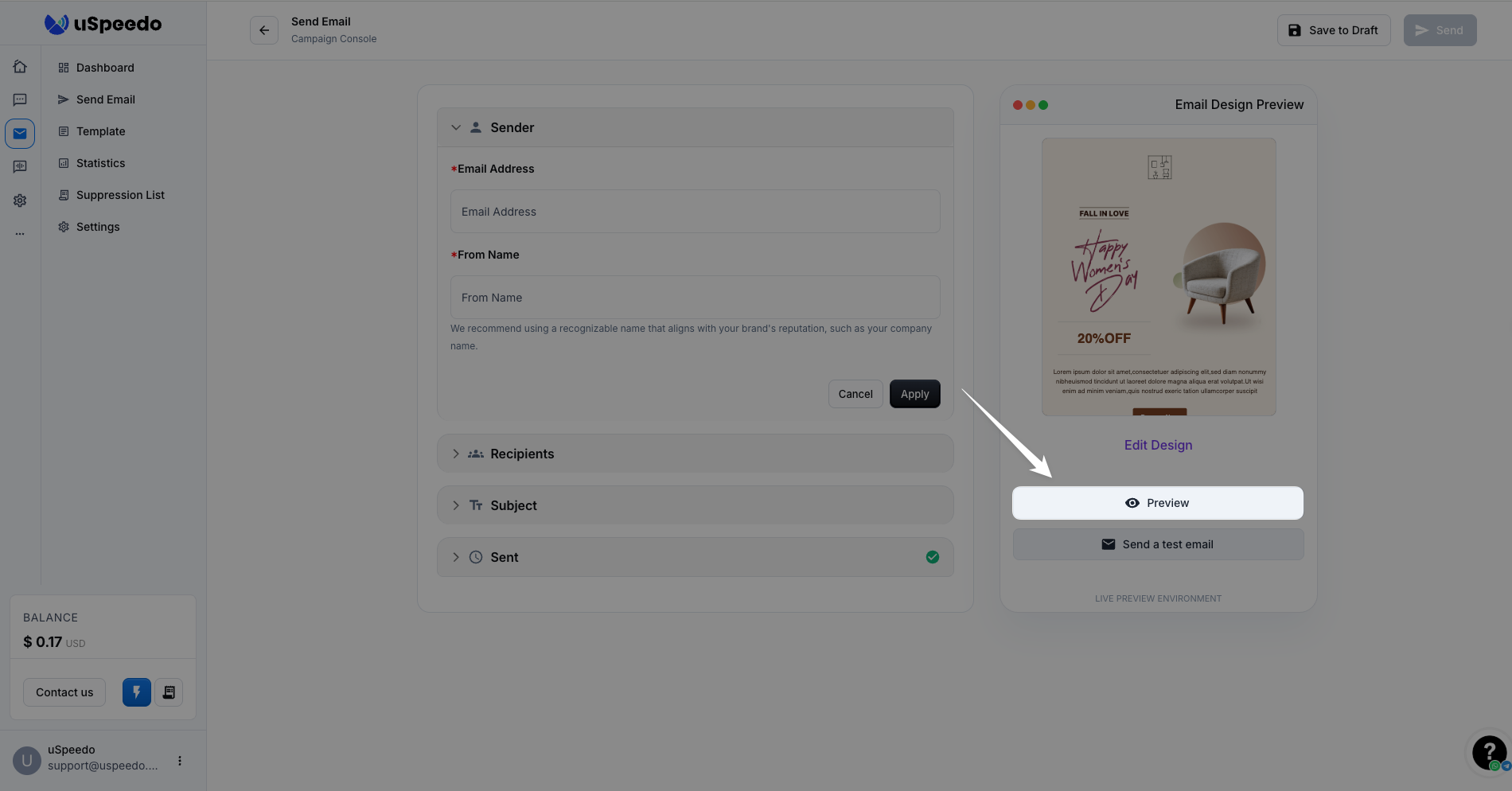
- From the Campaign Creation Page
- Locate your email content section on the right side
- Click Preview below the email editor
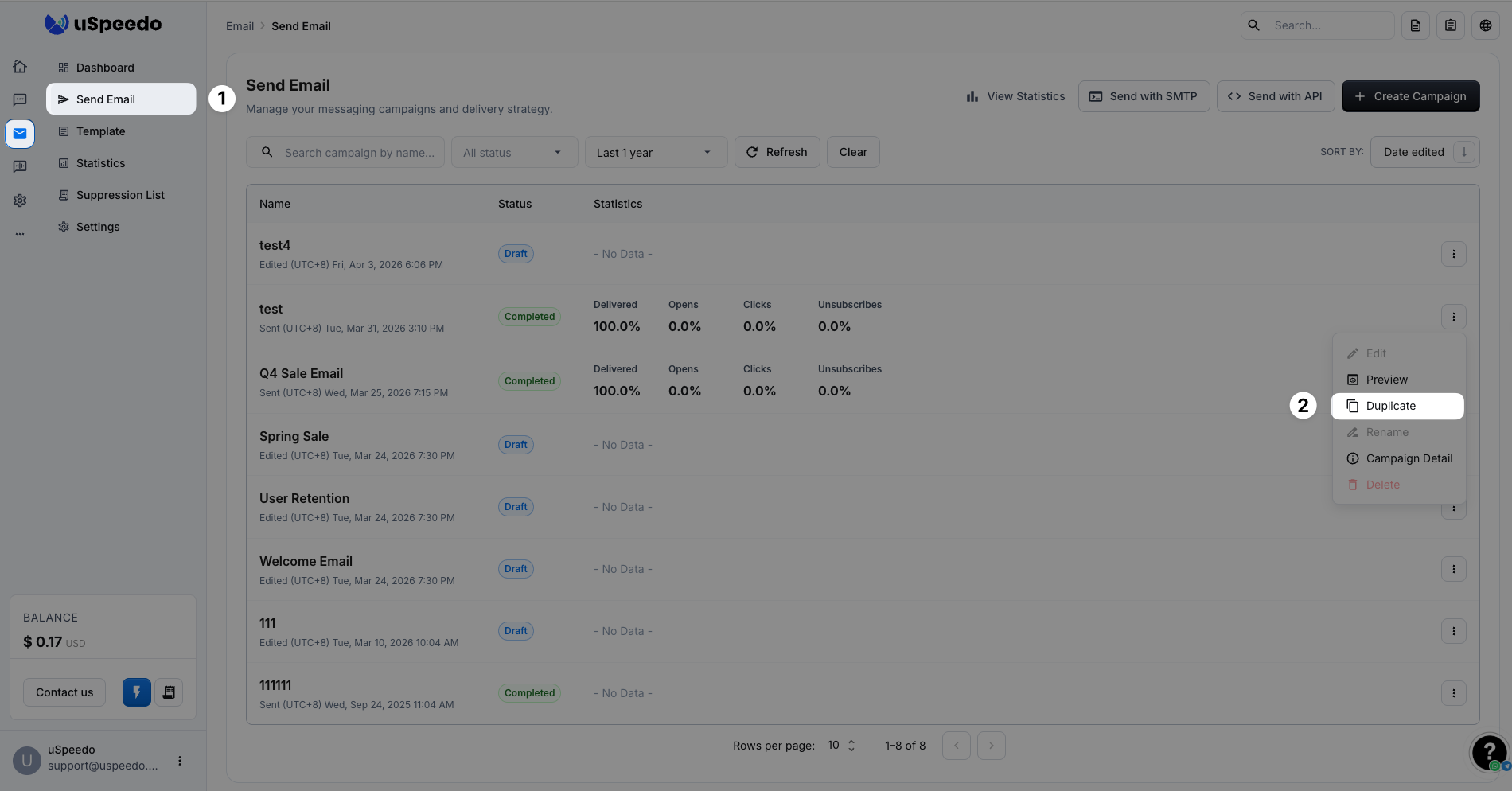
- From the Campaign List (Send Email Page)
- Find your campaign in the list
- Click the “More” (⋯) menu on the right
- Select Preview
✉️ Sending a Test Email
Sending an actual test email to your own inbox is the best way to test links, personalization tags, and subject lines. You can send a test email from two places:
Inside the Email Editor
- Click Send Test in the top-right corner
On the Campaign Creation Page
- Click Send a Test Email button under your email content block
⚠️ Important Requirement:
uSpeedo uses the Sender Name and Sender Email Address defined on your Campaign Creation page to send test emails. If these fields are blank, the test cannot be sent. Please ensure your Sender profile is filled out first.
Why Didn't I Receive My Test Email? (Troubleshooting)
If your test email hasn’t arrived, don't worry. Here are the most common reasons and how to fix them:
- Unauthenticated Sending Domain If your domain's DNS records (like SPF, DKIM, or DMARC) are not verified in uSpeedo, mailbox providers (like Google or Outlook) might block the email.
- Fix: Check your domain settings in uSpeedo to ensure your authentication records are green and active.
- Routed to Spam or Promotions Tabs Your test email might have bypassed the main inbox.
- Fix: Check your Spam/Junk folder or the Promotions tab. If you find it there, mark it as "Not Spam" or move it to your Primary inbox to train your email provider and improve future delivery.
- Receiving Delays (Queuing) Email delivery is not always instantaneous. Some email providers batch their incoming emails or run background security scans.
- Fix: Please wait 5 to 15 minutes. Some providers have internal cycles that cause slight delays before displaying a message.
- Content Red Flags or Compliance Issues Mailbox filters are sensitive. If your email contains elements often associated with spam, it may be dropped.
- Fix: Check if your email has excessive use of caps, potentially misleading marketing terms, too many exclamation marks, broken links, or is just a single giant image without any text.
- Local Network or Firewalls Sometimes your internal IT firewall might be holding the email for a deeper security inspection, e.g., you are sending to your corporate email address.
- Fix: Try sending the test to a personal address (like a standard @gmail.com account) to see if it arrives.
- Incorrect Recipient Email Address Please make sure the email address you fill in is a valid, active email address.
- Fix: Try sending to a different email address
Tips & Best Practices
- Test all links: When you receive the test email, click every single link and button to verify they point to the correct URLs.
- Check accessibility: Make sure your text is easily readable against your background colors on smaller mobile screens.
- Update your sender details early: Fill out your Sender Name and Email as the very first step of campaign creation so you can test your work at any time without interruptions.
By previewing and testing your emails thoroughly, you can significantly reduce errors and ensure a smooth, professional experience for your recipients.